549 lines
26 KiB
Markdown
549 lines
26 KiB
Markdown

|
#### 语义化类名
|
|||
|
|
|
|||
|
|
当前正在扩展布局区块支持输出的稳定语义化类名,相关讨论可在[此议题](https://github.com/WordPress/gutenberg/issues/38719)中查看。
|
|||
|
|
|
|||
|
|
目前通过布局区块支持可输出的语义化类名包括:
|
|||
|
|
|
|||
|
|
- `is-layout-flow`:采用默认/流式布局类型的区块
|
|||
|
|
- `is-layout-constrained`:采用约束布局类型的区块
|
|||
|
|
- `is-layout-flex`:采用弹性布局类型的区块
|
|||
|
|
- `is-layout-grid`:采用网格布局类型的区块
|
|||
|
|
- `wp-container-$id`:其中`$id`为半随机数。该容器类仅当区块包含非默认布局值时存在,请勿直接将其用于CSS选择器,因其可能动态变化
|
|||
|
|
- `is-horizontal`:当区块显式设置`orientation`为`horizontal`时
|
|||
|
|
- `is-vertical`:当区块显式设置`orientation`为`vertical`时
|
|||
|
|
- `is-content-justification-left`:当区块显式设置`justifyContent`为`left`时
|
|||
|
|
- `is-content-justification-center`:当区块显式设置`justifyContent`为`center`时
|
|||
|
|
- `is-content-justification-right`:当区块显式设置`justifyContent`为`right`时
|
|||
|
|
- `is-content-justification-space-between`:当区块显式设置`justifyContent`为`space-between`时
|
|||
|
|
- `is-nowrap`:当区块显式设置`flexWrap`为`nowrap`时
|
|||
|
|
|
|||
|
|
### 禁用自动生成的布局样式
|
|||
|
|
|
|||
|
|
由于核心结构区块需要依赖布局样式,系统默认开启布局样式输出。但主题可通过使用`disable-layout-styles`区块支持来禁用自动生成的区块布局样式,同时保留语义化类名输出。选择此方案的主题需自行提供完整的布局样式支持,具体请参阅[主题支持文档](https://developer.wordpress.org/block-editor/how-to-guides/themes/theme-support/#disabling-base-layout-styles)中的相关说明。
|
|||
|
|
|
|||
|
|
### 基础布局样式
|
|||
|
|
|
|||
|
|
基础布局样式是指那些选择特定布局类型的所有区块共通的样式。常见的基础布局样式示例包括:为采用弹性布局类型的区块(例如按钮区块和社交图标区块)设置 `display: flex`,以及为受限布局提供默认的最大宽度。
|
|||
|
|
|
|||
|
|
基础布局样式通过[处理全局样式的主要 PHP 类](https://github.com/WordPress/wordpress-develop/blob/trunk/src/wp-includes/class-wp-theme-json.php)输出,并构成全局样式表的一部分。为了在经典主题中支持核心区块,无论主题是否提供自身的 `theme.json` 文件,这些样式始终会被输出。
|
|||
|
|
|
|||
|
|
通用布局定义存储在[核心布局区块支持文件](https://github.com/WordPress/wordpress-develop/blob/trunk/src/wp-includes/block-supports/layout.php)中。
|
|||
|
|
|
|||
|
|
### 独立布局样式
|
|||
|
|
|
|||
|
|
当选择支持布局的区块被渲染时,会通过 [`layout.php`](https://github.com/WordPress/wordpress-develop/blob/trunk/src/wp-includes/block-supports/layout.php) 处理并将以下两项内容添加到输出中:
|
|||
|
|
|
|||
|
|
- 语义类名会被添加到区块标记中,以指示正在使用的布局设置。例如,`is-layout-flow` 用于使用默认/流式布局的区块(如群组区块),而 `is-content-justification-right` 会在用户将区块设置为右对齐时添加。
|
|||
|
|
- 为正在渲染的单个区块上设置的非默认布局值生成独立样式。这些样式通过容器类名附加到区块上,类名格式为 `wp-container-$id`,其中 `$id` 是一个[唯一编号](https://developer.wordpress.org/reference/functions/wp_unique_id/)。
|
|||
|
|
|
|||
|
|
### 可用的布局类型
|
|||
|
|
|
|||
|
|
目前有四种布局类型在使用:
|
|||
|
|
|
|||
|
|
- 默认/流式布局:项目垂直堆叠。父容器区块的显示值未指定,因此可以使用该 HTML 元素的默认值。对于大多数元素,这通常是 `block`。子元素之间的间距通过垂直边距处理。
|
|||
|
|
- 受限布局:项目垂直堆叠,使用与流式布局相同的间距逻辑。具有子内容宽度的限制,为标准内容尺寸和宽尺寸输出宽度。默认使用 `theme.json` 中 `settings.layout` 设置的全局 `contentSize` 和 `wideSize` 值。
|
|||
|
|
- 弹性布局:项目使用弹性盒子布局显示。默认为水平方向。子元素之间的间距通过 `gap` CSS 属性处理。
|
|||
|
|
- 网格布局:项目使用网格布局显示。默认为 `auto-fill` 方式生成列,但也可以设置为固定列数。子元素之间的间距通过 `gap` CSS 属性处理。
|
|||
|
|
|
|||
|
|
关于控制区块之间的间距以及启用区块间距控制,请参阅:[什么是 blockGap,我该如何使用它?](https://developer.wordpress.org/block-editor/how-to-guides/themes/global-settings-and-styles/#what-is-blockgap-and-how-can-i-use-it)
|
|||
|
|
|
|||
|
|
### 从主题中定位布局或容器区块
|
|||
|
|
|
|||
|
|
布局区块支持旨在通过区块和站点编辑器实现对布局功能的控制。在可能的情况下,尽量使用区块的功能来确定特定的布局需求,而不是依赖额外的样式表。
|
|||
|
|
|
|||
|
|
对于希望定位容器区块以添加或调整特定样式的主题,区块的类名通常是最佳选择。例如 `wp-block-group` 或 `wp-block-columns` 这样的类名通常是定位特定区块的可靠类名。除了区块和布局类名外,还有一个由区块和布局组合而成的类名:例如,对于具有受限布局的群组区块,类名将是 `wp-block-group-is-layout-constrained`。
|
|||
|
|
|
|||
|
|
对于使用特定布局类型的区块进行定位,请避免定位 `wp-container-`,因为容器类可能不会始终出现在渲染的标记中。
|
|||
|
|
|
|||
|
|
### 从界面控件到HTML标记
|
|||
|
|
|
|||
|
|
若您遵循[区块教程](https://developer.wordpress.org/block-editor/how-to-guides/block-tutorial/),可深入了解[区块API](https://developer.wordpress.org/block-editor/reference-guides/block-api/)的各个组成部分,并构建专属区块。本文将介绍区块如何让用户编辑其状态的核心概念。
|
|||
|
|
|
|||
|
|
要构建上述交互体验,区块开发者需具备以下要素:
|
|||
|
|
|
|||
|
|
1. **界面控件**:向用户提供选项交互,例如调整区块字体大小。该控件负责读取区块数据(当前是否已设定字体大小?)及其他必要信息(本区块允许使用哪些字号?)。可查阅现有[组件库](https://developer.wordpress.org/block-editor/reference-guides/components/)。
|
|||
|
|
2. **区块属性**:区块需存储数据以记录修改状态,例如是否已设定字号。了解区块如何定义[属性](https://developer.wordpress.org/block-editor/reference-guides/block-api/block-attributes/)。
|
|||
|
|
3. **样式数据接入**:控件可能需要获取区块可用样式的外部信息,如色彩列表或字号列表。这类预设样式通常由主题定义(WordPress也提供默认配置)。查看主题可向编辑器提供的[数据列表](https://developer.wordpress.org/block-editor/reference-guides/theme-json-reference/theme-json-living/#settings),以及开发者如何通过[useSetting](https://developer.wordpress.org/block-editor/reference-guides/packages/packages-block-editor/#usesetting)获取这些数据。
|
|||
|
|
4. **将用户样式序列化为HTML标记**:用户操作后,需相应更新区块HTML标记(添加对应类或行内样式)。此序列化过程由[编辑/保存](https://developer.wordpress.org/block-editor/reference-guides/block-api/block-edit-save/)函数与[render_callback](https://developer.wordpress.org/block-editor/how-to-guides/block-tutorial/creating-dynamic-blocks/)函数实现,它们将区块数据转换为HTML代码。
|
|||
|
|
|
|||
|
|
本质上,这些是区块开发者实现用户样式定制需关注的核心机制。虽然完全手动可实现,但针对通用样式需求,可通过自动化API——区块支持功能来简化流程。
|
|||
|
|
|
|||
|
|
### 区块支持API
|
|||
|
|
|
|||
|
|
[区块支持](https://developer.wordpress.org/block-editor/reference-guides/block-api/block-supports/)API允许区块声明其支持的功能。通过在[block.json文件](https://developer.wordpress.org/block-editor/reference-guides/block-api/block-metadata/)中添加配置信息,区块可向系统声明允许用户执行的操作类型。
|
|||
|
|
|
|||
|
|
例如:
|
|||
|
|
|
|||
|
|
```json
|
|||
|
|
{
|
|||
|
|
"name": "core/paragraph",
|
|||
|
|
"...": "...",
|
|||
|
|
"supports": {
|
|||
|
|
"typography": {
|
|||
|
|
"fontSize": true
|
|||
|
|
}
|
|||
|
|
}
|
|||
|
|
}
|
|||
|
|
```
|
|||
|
|
|
|||
|
|
段落区块在其`block.json`中声明支持字号调整。这意味着区块将显示字号调节控件(除非被主题禁用,详见[主题配置参考](https://developer.wordpress.org/block-editor/reference-guides/theme-json-reference/))。系统会自动配置控件数据(当前字号、可用字号列表),并在用户操作时将区块数据序列化为HTML标记(自动附加类与行内样式)。
|
|||
|
|
|
|||
|
|
通过`block.json`使用区块支持机制,开发者仅需数行代码即可实现完整交互体验。查看[区块支持API文档](/docs/reference-guides/block-api/block-supports.md)了解如何为静态或动态区块添加支持功能。
|
|||
|
|
|
|||
|
|
除简化开发流程外,该机制还有以下优势:
|
|||
|
|
|
|||
|
|
- 区块样式信息可被原生移动应用和服务端调用
|
|||
|
|
- 区块对同类样式使用统一控件,确保用户体验一致性
|
|||
|
|
- 所用界面控件将随系统升级自动优化,无需开发者干预
|
|||
|
|
|
|||
|
|
# 编辑器中的样式
|
|||
|
|
|
|||
|
|
本文档将介绍影响区块编辑器用户内容的相关样式核心概念,同时提供对应的参考指南和教程链接,方便读者深入探究每个主题。本文主要面向区块创作者和参与区块编辑器项目的开发人员。
|
|||
|
|
|
|||
|
|
## HTML 与 CSS
|
|||
|
|
|
|||
|
|
用户在区块编辑器中创建内容时,实际上在生成一系列产物:一个 HTML 文档和若干 CSS 样式表(可内嵌于文档或作为外部文件)。
|
|||
|
|
|
|||
|
|
最终生成的 HTML 文档由以下要素共同构成:
|
|||
|
|
|
|||
|
|
- 主题提供的 [WordPress 模板](https://developer.wordpress.org/themes/basics/template-files/)(通过 PHP 实现的经典主题或通过 HTML 模板实现的区块主题)([详细了解](https://developer.wordpress.org/themes/block-themes/#differences-and-similarities-between-classic-themes-and-block-themes)二者差异)
|
|||
|
|
- 具有预定义结构(HTML 标记)的[区块](https://developer.wordpress.org/block-editor/reference-guides/core-blocks/)与版式
|
|||
|
|
- 用户对内容的修改:添加内容、转换现有内容(如将段落转换为标题)或调整内容(为区块添加类或内联样式)
|
|||
|
|
|
|||
|
|
前端加载的样式表包含:
|
|||
|
|
|
|||
|
|
- **区块样式**:区块自带的样式表。在前端,您可能会看到 WordPress 定义的所有区块样式合并为单一样式表(`wp-block-library-*`),也可能是每个使用中的区块拥有独立样式表(如 `wp-block-group-*`、`wp-block-columns-*` 等)。完整说明请参阅[此说明文档](https://make.wordpress.org/core/2021/07/01/block-styles-loading-enhancements-in-wordpress-5-8/)。
|
|||
|
|
- **全局样式**:这些样式通过 theme.json 文件的数据动态生成(参见[说明文档](https://make.wordpress.org/core/2021/06/25/introducing-theme-json-in-wordpress-5-8/)、[参考指南](https://developer.wordpress.org/block-editor/reference-guides/theme-json-reference/)和[操作指南](https://developer.wordpress.org/block-editor/how-to-guides/themes/global-settings-and-styles/))。具体而言,它会整合来自 WordPress 的 theme.json、主题自带的 theme.json(如有)以及用户通过站点编辑器的全局样式侧边栏提供的数据,最终生成一个 ID 为 `global-styles-inline-css` 的内嵌样式表。
|
|||
|
|
- **主题样式**:传统上主题会自行注册样式表,其 ID 基于主题名称(如 `twentytwentytwo-style-css`)。如今除了自有样式表外,主题还可声明包含样式的 theme.json 文件,这些样式将成为全局样式生成样式表的一部分。
|
|||
|
|
- **用户样式**:用户在编辑器中的某些操作会生成样式内容,例如双色调、布局或链接颜色等功能。
|
|||
|
|
- **其他样式**:WordPress 核心和插件也可注册样式表。
|
|||
|
|
|
|||
|
|
## 区块样式
|
|||
|
|
|
|||
|
|
自 WordPress 5.0 引入区块编辑器以来,一直提供为用户“添加样式”到特定区块的工具。通过这些工具,用户可为区块附加新类或内联样式,从而改变其视觉呈现。
|
|||
|
|
|
|||
|
|
默认情况下,区块具有预设的 HTML 标记。以段落区块为例:
|
|||
|
|
|
|||
|
|
```html
|
|||
|
|
<p></p>
|
|||
|
|
```
|
|||
|
|
|
|||
|
|
在最简形式下,任何针对 `p` 选择器的样式规则都会作用于该区块,无论这些规则来自区块、主题或其他来源。
|
|||
|
|
|
|||
|
|
用户可通过应用不同样式来改变区块状态:文本对齐方式、颜色、字体大小、行高等。这些状态通过 HTML 属性(主要是 `class` 或 `style` 属性,也可以是区块作者认为合适的任何其他属性)反映在区块的 HTML 标记中。
|
|||
|
|
|
|||
|
|
经过用户修改后,初始标记可能变为:
|
|||
|
|
|
|||
|
|
```html
|
|||
|
|
<p class="has-color has-green-color has-font-size has-small-font-size my-custom-class"
|
|||
|
|
style="line-height: 1em"></p>
|
|||
|
|
```
|
|||
|
|
|
|||
|
|
这就是我们所说的“用户提供的区块样式”,也称为“本地样式”或“序列化样式”。本质上,每个工具(字体大小、颜色等)最终都会向区块标记添加若干类和/或内联样式。这些类对应的 CSS 样式属于区块、全局或主题样式表的一部分。
|
|||
|
|
|
|||
|
|
修改区块状态的能力,加上区块可嵌套于其他区块的特性(例如段落区块位于编组区块内),创造了海量的潜在状态和样式组合可能。
|
|||
|
|
|
|||
|
|
#### 设置项到CSS规则的转换
|
|||
|
|
|
|||
|
|
从 `settings` 部分中,所有预设值都将转换为遵循此命名结构的CSS自定义属性:`--wp--preset--<类别>-<别名>`。选择器遵循上述样式部分描述的相同规则。
|
|||
|
|
|
|||
|
|
例如,以下 theme.json 配置:
|
|||
|
|
|
|||
|
|
```json
|
|||
|
|
{
|
|||
|
|
"settings": {
|
|||
|
|
"color": {
|
|||
|
|
"palette": {
|
|||
|
|
"default": [
|
|||
|
|
{
|
|||
|
|
"slug": "vivid-red",
|
|||
|
|
"value": "#cf2e2e",
|
|||
|
|
"name": "Vivid Red"
|
|||
|
|
}
|
|||
|
|
],
|
|||
|
|
"theme": [
|
|||
|
|
{
|
|||
|
|
"slug": "foreground",
|
|||
|
|
"value": "#000",
|
|||
|
|
"name": "Foreground"
|
|||
|
|
}
|
|||
|
|
]
|
|||
|
|
}
|
|||
|
|
},
|
|||
|
|
"blocks": {
|
|||
|
|
"core/site-title": {
|
|||
|
|
"color": {
|
|||
|
|
"palette": {
|
|||
|
|
"theme": [
|
|||
|
|
{
|
|||
|
|
"slug": "foreground",
|
|||
|
|
"value": "#1a4548",
|
|||
|
|
"name": "Foreground"
|
|||
|
|
}
|
|||
|
|
]
|
|||
|
|
}
|
|||
|
|
}
|
|||
|
|
}
|
|||
|
|
}
|
|||
|
|
}
|
|||
|
|
}
|
|||
|
|
```
|
|||
|
|
|
|||
|
|
将被转换为以下CSS样式规则:
|
|||
|
|
|
|||
|
|
```CSS
|
|||
|
|
body {
|
|||
|
|
--wp--preset--color--vivid-red: #cf2e2e;
|
|||
|
|
--wp--preset--color--foreground: #000;
|
|||
|
|
}
|
|||
|
|
|
|||
|
|
.wp-block-site-title {
|
|||
|
|
--wp--preset--color--foreground: #1a4548;
|
|||
|
|
}
|
|||
|
|
```
|
|||
|
|
|
|||
|
|
除了CSS自定义属性外,除双色调外的所有预设都会为每个值生成CSS类。上例还会生成以下CSS类:
|
|||
|
|
|
|||
|
|
```CSS
|
|||
|
|
/* vivid-red */
|
|||
|
|
.has-vivid-red-color { color: var(--wp--preset--color--vivid-red) !important; }
|
|||
|
|
.has-vivid-red-background-color { background-color: var(--wp--preset--color--vivid-red) !important; }
|
|||
|
|
.has-vivid-red-border-color { border-color: var(--wp--preset--color--vivid-red) !important; }
|
|||
|
|
|
|||
|
|
/* foreground */
|
|||
|
|
.has-foreground-color { color: var(--wp--preset--color--foreground) !important; }
|
|||
|
|
.has-foreground-background-color { background-color: var(--wp--preset--color--foreground) !important; }
|
|||
|
|
.has-foreground-border-color { border-color: var(--wp--preset--color--foreground) !important; }
|
|||
|
|
|
|||
|
|
/* 站点标题内的foreground */
|
|||
|
|
.wp-block-site-title .has-foreground-color { color: var(--wp--preset--color--foreground) !important; }
|
|||
|
|
.wp-block-site-title .has-foreground-background-color { background-color: var(--wp--preset--color--foreground) !important; }
|
|||
|
|
.wp-block-site-title .has-foreground-border-color { border-color: var(--wp--preset--color--foreground) !important; }
|
|||
|
|
```
|
|||
|
|
|
|||
|
|
### 全局样式API的当前限制
|
|||
|
|
|
|||
|
|
#### 1. **为区块设置不同CSS选择器需服务端注册**
|
|||
|
|
|
|||
|
|
默认情况下,分配给区块的选择器是 `.wp-block-<区块名称>`。但区块可以根据需要更改此设置,可以通过其 `block.json` 中的 `__experimentalSelector` 属性提供CSS选择器。
|
|||
|
|
|
|||
|
|
如果区块这样做,需要在服务端使用 `block.json` 进行注册,否则全局样式代码无法访问该信息,将使用区块的默认CSS选择器。
|
|||
|
|
|
|||
|
|
#### 2. **无法为不同样式定位不同HTML节点**
|
|||
|
|
|
|||
|
|
每个样式块只能使用单个选择器。
|
|||
|
|
|
|||
|
|
当区块使用 `__experimentalSkipSerialization` 将不同样式属性序列化到包装器以外的不同节点时,这一点尤为重要。详见"区块支持的当前限制"。
|
|||
|
|
|
|||
|
|
#### 3. **每个区块仅支持单一属性**
|
|||
|
|
|
|||
|
|
与区块支持类似,区块只能使用任何样式的单个实例。例如,区块只能拥有单一字体大小。详见相关"区块支持的当前限制"。
|
|||
|
|
|
|||
|
|
#### 4. **仅使用区块支持的区块会显示在全局样式UI中**
|
|||
|
|
|
|||
|
|
站点编辑器中的全局样式UI设有按区块样式的界面。区块列表是使用来自区块 `block.json` 的区块支持动态生成的。如果区块希望被列出,需要使用区块支持机制。
|
|||
|
|
|
|||
|
|
## 布局样式
|
|||
|
|
|
|||
|
|
除了单个区块级别和全局样式中的样式外,还存在为基于区块的主题和经典主题输出的布局样式概念。
|
|||
|
|
|
|||
|
|
布局区块支持输出用于创建布局的区块之间共享的通用布局样式。布局样式对于为作为其他区块容器的任何区块提供通用样式非常有用。依赖这些布局样式的区块示例包括群组、行、列、按钮和社交图标。核心区块通过其 `block.json` 文件中 `supports` 下的 `layout` 设置启用此功能。
|
|||
|
|
|
|||
|
|
布局样式主要输出在两个位置:
|
|||
|
|
|
|||
|
|
### 区块支持API的当前限制
|
|||
|
|
|
|||
|
|
尽管区块支持API具有实用价值,但区块开发者仍需注意其存在的一些限制。为了更好地理解这些限制,我们以表格区块为例进行说明:
|
|||
|
|
|
|||
|
|
```html
|
|||
|
|
<table>
|
|||
|
|
<thead>
|
|||
|
|
<tr>
|
|||
|
|
<th>标题</th>
|
|||
|
|
</tr>
|
|||
|
|
</thead>
|
|||
|
|
<tbody>
|
|||
|
|
<tr>
|
|||
|
|
<th>第一行</th>
|
|||
|
|
</tr>
|
|||
|
|
<tr>
|
|||
|
|
<th>第二行</th>
|
|||
|
|
</tr>
|
|||
|
|
</tbody>
|
|||
|
|
<tfoot>
|
|||
|
|
<tr>
|
|||
|
|
<th>页脚</th>
|
|||
|
|
</tr>
|
|||
|
|
</tfoot>
|
|||
|
|
</table>
|
|||
|
|
```
|
|||
|
|
|
|||
|
|
1. **每个区块仅支持单一样式类型**
|
|||
|
|
|
|||
|
|
在[所有可用样式](https://developer.wordpress.org/block-editor/reference-guides/block-api/block-supports/)中,区块只能使用每种样式的一个实例。以表格区块为例,它只能设置单一字体大小。如果区块开发者希望为表头、主体和页脚设置三种不同字体大小,当前区块支持API无法实现。更多详细信息及解决方案请参阅[此议题](https://github.com/WordPress/gutenberg/issues/33255)。
|
|||
|
|
|
|||
|
|
2. **样式仅序列化至区块最外层HTML节点(包装器)**
|
|||
|
|
|
|||
|
|
区块支持API仅将字体大小值序列化至包装器,生成的HTML为`<table class="has-small-font-size">`。当前API无法将该值序列化至其他节点(例如`<tbody>`)。
|
|||
|
|
|
|||
|
|
这项工作正处于积极开发阶段,您可以通过[跟踪议题](https://github.com/WordPress/gutenberg/issues/38167)了解进展。相关提案正在探索不同的用户更改序列化方案:不再由每个区块支持单独序列化数据(例如生成`has-small-font-size`、`has-green-color`等类),而是让区块获得单个类名(例如`wp-style-UUID`),并由WordPress在服务器端生成该类的CSS样式。
|
|||
|
|
|
|||
|
|
在该提案持续推进的同时,区块开发者可以使用实验性选项作为解决方案。任何区块支持都可以通过`__experimentalSkipSerialization`跳过HTML标记的序列化。例如:
|
|||
|
|
|
|||
|
|
```json
|
|||
|
|
{
|
|||
|
|
"name": "core/paragraph",
|
|||
|
|
"...": "...",
|
|||
|
|
"supports": {
|
|||
|
|
"typography": {
|
|||
|
|
"fontSize": true,
|
|||
|
|
"__experimentalSkipSerialization": true
|
|||
|
|
}
|
|||
|
|
}
|
|||
|
|
}
|
|||
|
|
```
|
|||
|
|
|
|||
|
|
这意味着排版区块支持将执行所有操作(创建UI控件、将区块属性绑定到控件等),但不会将用户值序列化到HTML标记中。类和内联样式不会自动应用于包装器,区块开发者需要在`edit`、`save`和`render_callback`函数中实现此功能。具体实现示例请参阅[此议题](https://github.com/WordPress/gutenberg/issues/28913)。
|
|||
|
|
|
|||
|
|
请注意,如果为组(排版、颜色、间距)启用`__experimentalSkipSerialization`,将影响该组内_所有_区块支持。在上例中,`typography`组内的_所有_属性(如`fontSize`、`lineHeight`、`fontFamily`等)都会受到影响。
|
|||
|
|
|
|||
|
|
若仅针对_单个_属性启用,可以使用数组声明要跳过的属性。下例中仅`fontSize`会跳过序列化,`typography`组内的其他项目(如`lineHeight`、`fontFamily`等)不受影响:
|
|||
|
|
|
|||
|
|
```json
|
|||
|
|
{
|
|||
|
|
"name": "core/paragraph",
|
|||
|
|
"...": "...",
|
|||
|
|
"supports": {
|
|||
|
|
"typography": {
|
|||
|
|
"fontSize": true,
|
|||
|
|
"lineHeight": true,
|
|||
|
|
"__experimentalSkipSerialization": [ "fontSize" ]
|
|||
|
|
}
|
|||
|
|
}
|
|||
|
|
}
|
|||
|
|
```
|
|||
|
|
|
|||
|
|
该功能支持已[通过此PR添加](https://github.com/WordPress/gutenberg/pull/36293)。
|
|||
|
|
|
|||
|
|
## 全局样式
|
|||
|
|
|
|||
|
|
全局样式是指生成全站样式的一种机制。与前一节所述的区块样式不同,这些样式不会序列化到文章内容中,也不会附加到区块HTML。该系统的输出是一个ID为`global-styles-inline-css`的新样式表。
|
|||
|
|
|
|||
|
|
该机制[于WordPress 5.8引入](https://make.wordpress.org/core/2021/06/25/introducing-theme-json-in-wordpress-5-8/)。当时仅从WordPress和启用主题获取数据。WordPress 5.9将该系统扩展为同时接收来自用户的样式数据。
|
|||
|
|
|
|||
|
|
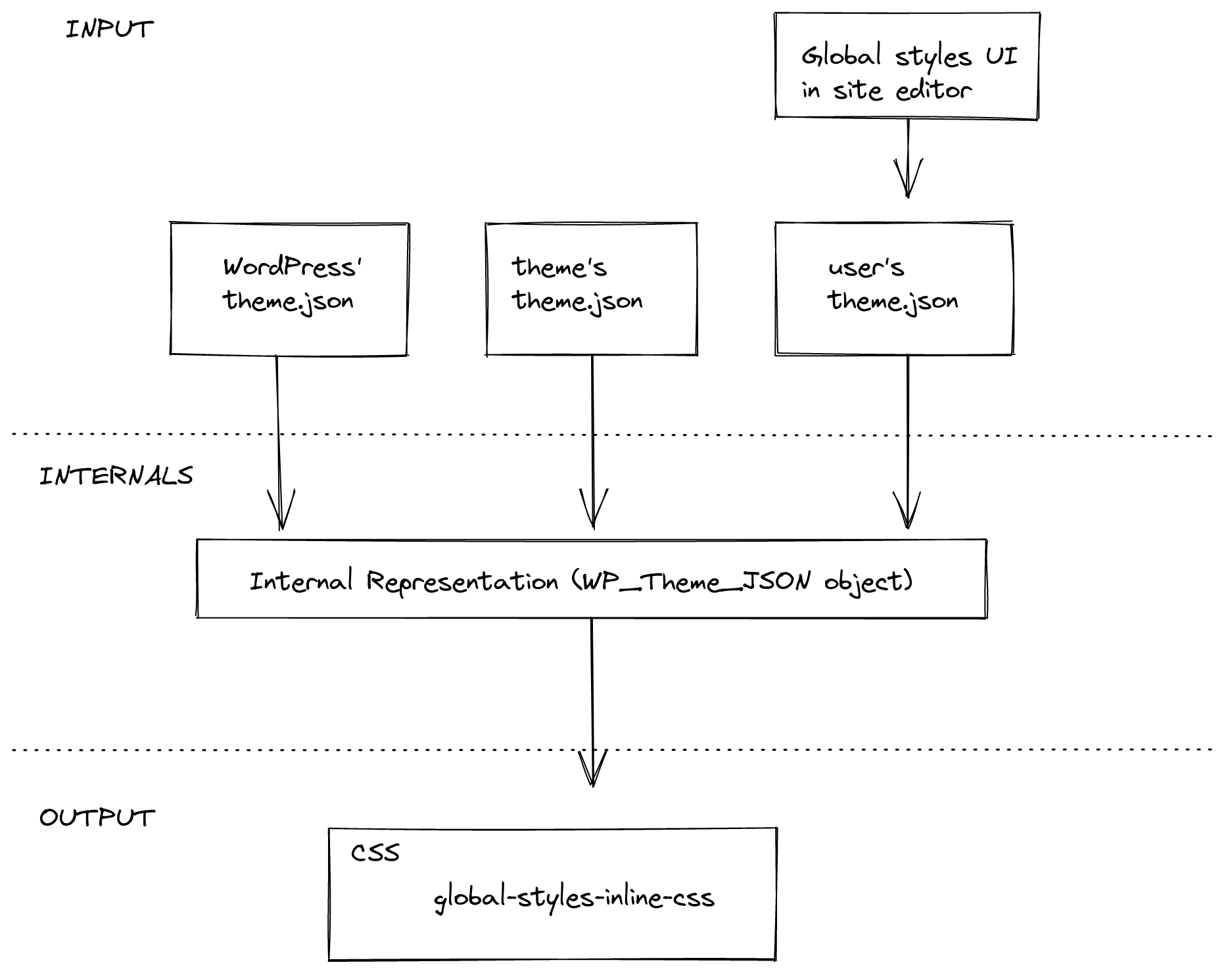
基本数据流如下:
|
|||
|
|
|
|||
|
|
|
|||
|
|
|
|||
|
|
样式表的生成过程主要包含三个步骤:
|
|||
|
|
|
|||
|
|
1. 收集数据:[WordPress内置](https://github.com/WordPress/wordpress-develop/blob/trunk/src/wp-includes/theme.json)的`theme.json`文件、启用主题的`theme.json`文件(如果存在),以及用户通过站点编辑器中全局样式UI提供的样式
|
|||
|
|
2. 整合数据:对来自不同来源(WordPress默认值、主题和用户)的结构化信息进行标准化处理,并合并为统一结构
|
|||
|
|
3. 将数据转换为样式表:将内部表示转换为CSS样式规则,并将其加入样式表队列
|
|||
|
|
|
|||
|
|
### 收集数据
|
|||
|
|
|
|||
|
|
数据可能来自三个不同来源:WordPress 默认配置、当前启用主题或用户设置。这三类数据均采用统一的 [`theme.json` 格式](https://developer.wordpress.org/block-editor/reference-guides/theme-json-reference/)。
|
|||
|
|
|
|||
|
|
WordPress 和当前主题的数据从对应的 `theme.json` 文件中获取。用户数据则从数据库中提取,这些数据是用户通过站点编辑器的全局样式侧边栏保存修改后存储的。
|
|||
|
|
|
|||
|
|
### 整合数据
|
|||
|
|
|
|||
|
|
此阶段的目标是构建统一的数据结构。
|
|||
|
|
|
|||
|
|
该阶段包含两个重要处理流程:首先,系统需要对所有输入数据进行标准化处理,因为不同来源可能使用不同版本的 `theme.json`格式(例如某个主题可能使用 [v1 版本](https://developer.wordpress.org/block-editor/reference-guides/theme-json-reference/theme-json-v1/),而 WordPress 基础框架使用[最新版本](https://developer.wordpress.org/block-editor/reference-guides/theme-json-reference/theme-json-living/))。其次,系统需要确定如何将输入数据合并为统一结构,这将是后续章节的重点内容。
|
|||
|
|
|
|||
|
|
#### 样式处理
|
|||
|
|
|
|||
|
|
对于 `theme.json` 结构中的不同部分,系统会采用差异化处理方式。`styles` 章节中的数据遵循以下逻辑进行融合:用户数据会覆盖主题数据,主题数据会覆盖 WordPress 数据。
|
|||
|
|
|
|||
|
|
例如,假设我们分别从 WordPress、主题和用户获取到以下三个 `theme.json` 结构:
|
|||
|
|
|
|||
|
|
```json
|
|||
|
|
{
|
|||
|
|
"styles": {
|
|||
|
|
"color": {
|
|||
|
|
"background": "<WordPress 值>"
|
|||
|
|
},
|
|||
|
|
"typography": {
|
|||
|
|
"fontSize": "<WordPress 值>"
|
|||
|
|
}
|
|||
|
|
}
|
|||
|
|
}
|
|||
|
|
```
|
|||
|
|
|
|||
|
|
```json
|
|||
|
|
{
|
|||
|
|
"styles": {
|
|||
|
|
"typography": {
|
|||
|
|
"fontSize": "<主题值>",
|
|||
|
|
"lineHeight": "<主题值>"
|
|||
|
|
}
|
|||
|
|
}
|
|||
|
|
}
|
|||
|
|
```
|
|||
|
|
|
|||
|
|
```json
|
|||
|
|
{
|
|||
|
|
"styles": {
|
|||
|
|
"typography": {
|
|||
|
|
"lineHeight": "<用户值>"
|
|||
|
|
}
|
|||
|
|
}
|
|||
|
|
}
|
|||
|
|
```
|
|||
|
|
|
|||
|
|
整合后的结果将是:
|
|||
|
|
|
|||
|
|
```json
|
|||
|
|
{
|
|||
|
|
"styles": {
|
|||
|
|
"color": {
|
|||
|
|
"background": "<WordPress 值>"
|
|||
|
|
},
|
|||
|
|
"typography": {
|
|||
|
|
"fontSize": "<主题值>",
|
|||
|
|
"lineHeight": "<用户值>"
|
|||
|
|
}
|
|||
|
|
}
|
|||
|
|
}
|
|||
|
|
```
|
|||
|
|
|
|||
|
|
#### 设置处理
|
|||
|
|
|
|||
|
|
`settings` 章节的处理方式与样式不同。大部分设置仅用于编辑器配置,不会影响全局样式。其中仅预设值会最终影响样式表输出。
|
|||
|
|
|
|||
|
|
预设值是指在界面不同区域向用户展示的预定义样式,例如调色板或字体尺寸。包含以下设置项:`color.duotone`、`color.gradients`、`color.palette`、`typography.fontFamilies`、`typography.fontSizes`。与 `styles` 不同,来自不同来源的预设值不会相互覆盖,而是全部保存在整合后的结构中。
|
|||
|
|
|
|||
|
|
例如,假设我们分别从 WordPress、主题和用户获取到以下三个 `theme.json` 结构:
|
|||
|
|
|
|||
|
|
```json
|
|||
|
|
{
|
|||
|
|
"settings": {
|
|||
|
|
"color": {
|
|||
|
|
"palette": [ "<WordPress 值>" ],
|
|||
|
|
"gradients": [ "<WordPress 值>" ]
|
|||
|
|
}
|
|||
|
|
}
|
|||
|
|
}
|
|||
|
|
```
|
|||
|
|
|
|||
|
|
```json
|
|||
|
|
{
|
|||
|
|
"settings": {
|
|||
|
|
"color": {
|
|||
|
|
"palette": [ "<主题值>" ]
|
|||
|
|
},
|
|||
|
|
"typography": {
|
|||
|
|
"fontFamilies": [ "<主题值>" ]
|
|||
|
|
}
|
|||
|
|
}
|
|||
|
|
}
|
|||
|
|
```
|
|||
|
|
|
|||
|
|
```json
|
|||
|
|
{
|
|||
|
|
"settings": {
|
|||
|
|
"color": {
|
|||
|
|
"palette": [ "<用户值>" ]
|
|||
|
|
}
|
|||
|
|
}
|
|||
|
|
}
|
|||
|
|
```
|
|||
|
|
|
|||
|
|
整合后的结果将是:
|
|||
|
|
|
|||
|
|
```json
|
|||
|
|
{
|
|||
|
|
"settings": {
|
|||
|
|
"color": {
|
|||
|
|
"palette": {
|
|||
|
|
"default": [ "<WordPress 值>" ],
|
|||
|
|
"theme": [ "<主题值>" ],
|
|||
|
|
"user": [ "<用户值>" ]
|
|||
|
|
},
|
|||
|
|
"gradients": {
|
|||
|
|
"default": [ "<WordPress 值>" ]
|
|||
|
|
}
|
|||
|
|
},
|
|||
|
|
"typography": {
|
|||
|
|
"fontFamilies": {
|
|||
|
|
"theme": [ "<主题值>" ]
|
|||
|
|
}
|
|||
|
|
}
|
|||
|
|
}
|
|||
|
|
}
|
|||
|
|
```
|
|||
|
|
|
|||
|
|
### 从数据到样式
|
|||
|
|
|
|||
|
|
生成样式表的最后阶段是将整合数据转换为 CSS 样式规则。
|
|||
|
|
|
|||
|
|
#### 样式转 CSS 规则
|
|||
|
|
|
|||
|
|
可以将 `styles` 章节视为 CSS 规则的结构化表示,每个数据块对应一条 CSS 规则:
|
|||
|
|
|
|||
|
|
- theme.json 中的键值对映射为 CSS 声明(`property: value`)
|
|||
|
|
- 每个数据块的 CSS 选择器根据其语义生成:
|
|||
|
|
- 顶层章节使用 `body` 选择器
|
|||
|
|
- 顶层元素使用与其表示的 HTML 元素匹配的 ID 选择器(例如 `h1` 或 `a`)
|
|||
|
|
- 区块使用默认生成的类名(`core/group` 转换为 `.wp-block-group`),除非通过 `block.json` 明确设置不同选择器(`core/paragraph` 转换为 `p`)。详见“当前限制”章节说明
|
|||
|
|
- 区块内的元素使用区块选择器与元素选择器的组合
|
|||
|
|
|
|||
|
|
例如,以下 `theme.json` 结构:
|
|||
|
|
|
|||
|
|
```json
|
|||
|
|
{
|
|||
|
|
"styles": {
|
|||
|
|
"typography": {
|
|||
|
|
"fontSize": "<顶层值>"
|
|||
|
|
},
|
|||
|
|
"elements": {
|
|||
|
|
"h1": {
|
|||
|
|
"typography": {
|
|||
|
|
"fontSize": "<h1 值>"
|
|||
|
|
}
|
|||
|
|
}
|
|||
|
|
},
|
|||
|
|
"blocks": {
|
|||
|
|
"core/paragraph": {
|
|||
|
|
"color": {
|
|||
|
|
"text": "<段落值>"
|
|||
|
|
}
|
|||
|
|
},
|
|||
|
|
"core/group": {
|
|||
|
|
"color": {
|
|||
|
|
"text": "<群组值>"
|
|||
|
|
},
|
|||
|
|
"elements": {
|
|||
|
|
"h1": {
|
|||
|
|
"color": {
|
|||
|
|
"text": "<群组内 h1 值>"
|
|||
|
|
}
|
|||
|
|
}
|
|||
|
|
}
|
|||
|
|
}
|
|||
|
|
}
|
|||
|
|
}
|
|||
|
|
}
|
|||
|
|
```
|
|||
|
|
|
|||
|
|
将被转换为以下 CSS:
|
|||
|
|
|
|||
|
|
```css
|
|||
|
|
body {
|
|||
|
|
font-size: <顶层值>;
|
|||
|
|
}
|
|||
|
|
h1 {
|
|||
|
|
font-size: <h1 值>;
|
|||
|
|
}
|
|||
|
|
p {
|
|||
|
|
color: <段落值>;
|
|||
|
|
}
|
|||
|
|
.wp-block-group {
|
|||
|
|
color: <群组值>;
|
|||
|
|
}
|
|||
|
|
.wp-block-group h1 {
|
|||
|
|
color: <群组内 h1 值>;
|
|||
|
|
}
|
|||
|
|
```
|